
To add the nutrition information for the base meal/size, open an item by double-clicking it or hitting the View button ( ) and go to the Ingredients tab.

If you want to take advantage of the Ingredients reports, you can enter all the ingredients and their quantities in the Type in Ingredients tab. This will use the Nutritionix API to generate the nutrition label.
Enter the ingredients that make up the meal, including measurements such as tsp, tbsp, cup, gram, oz, etc. Hit Enter after each ingredient or separate each ingredient by a comma.
This is an example of a valid list of ingredients:
100 g spinach
1 tsp butter
1 slice cheese
Afterward, click the Add ( ) button.
With the base meal setup, you can then move on to the Variations such as different sizes or components.
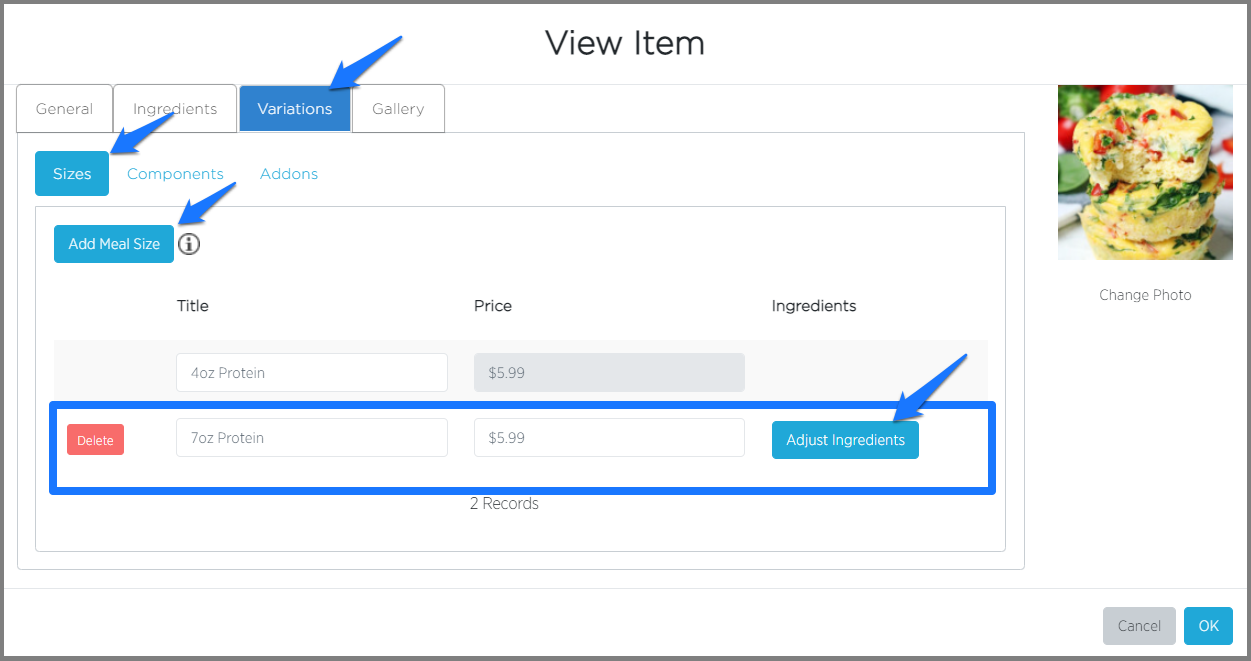
For example, here is where you'd add/change ingredients for each of the sizes:
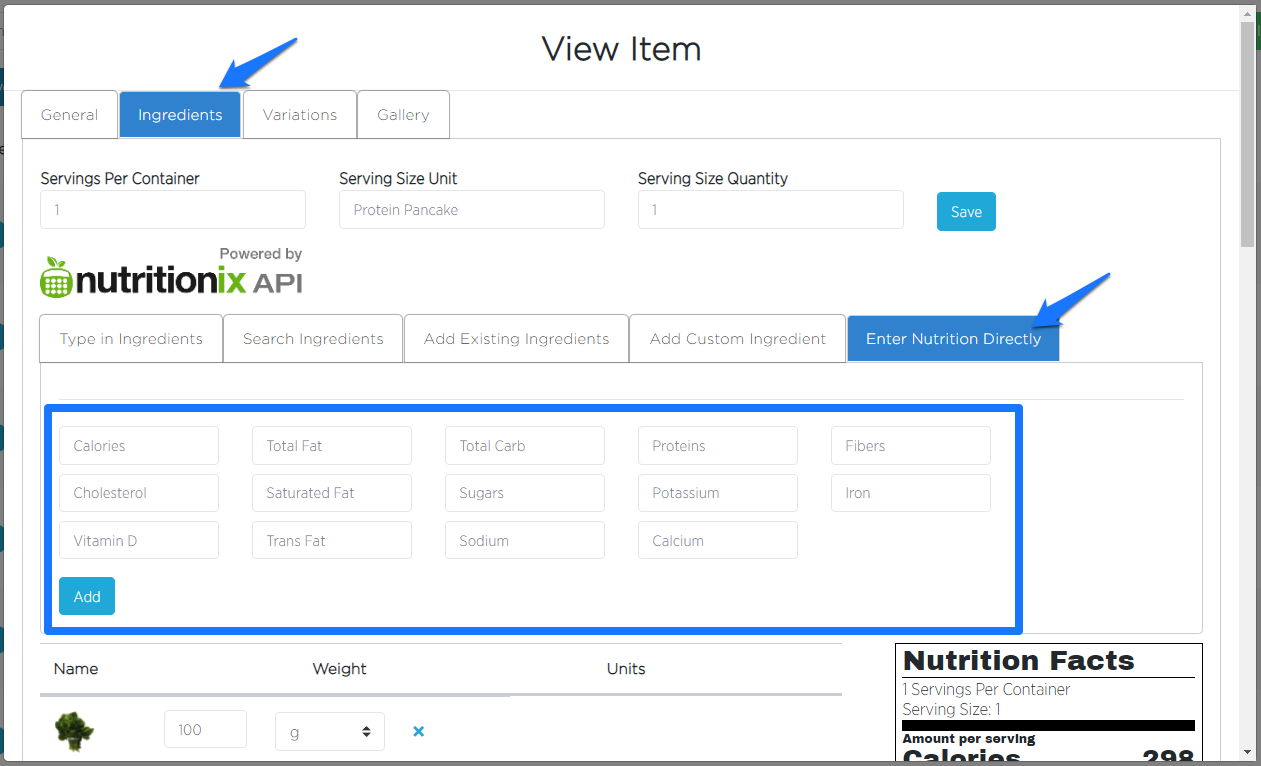
Most companies use Nutritionix to generate the nutrition info. However, if you already have this from your nutritionist, you can enter the data directly in the Enter Nutrition Directly tab.
We also recommend checking these videos from our Learning Center:
Don't hesitate to contact GoPrep's Customer Support Team for further assistance.
You can do so by submitting a request or sending an email to help@goprep.com.
Comments
0 comments
Article is closed for comments.